> ## Documentation Index
> Fetch the complete documentation index at: https://docs.chatsistant.com/llms.txt
> Use this file to discover all available pages before exploring further.
# Human Support Escalation
As powerful as AI chatbots can be, sometimes human accountability and expertise is still needed. Chatsistant's
built-in human support escalation feature allows you or your collaborators to step in during any ongoing chat
session and take over the conversation.
## Set up Human Escalation
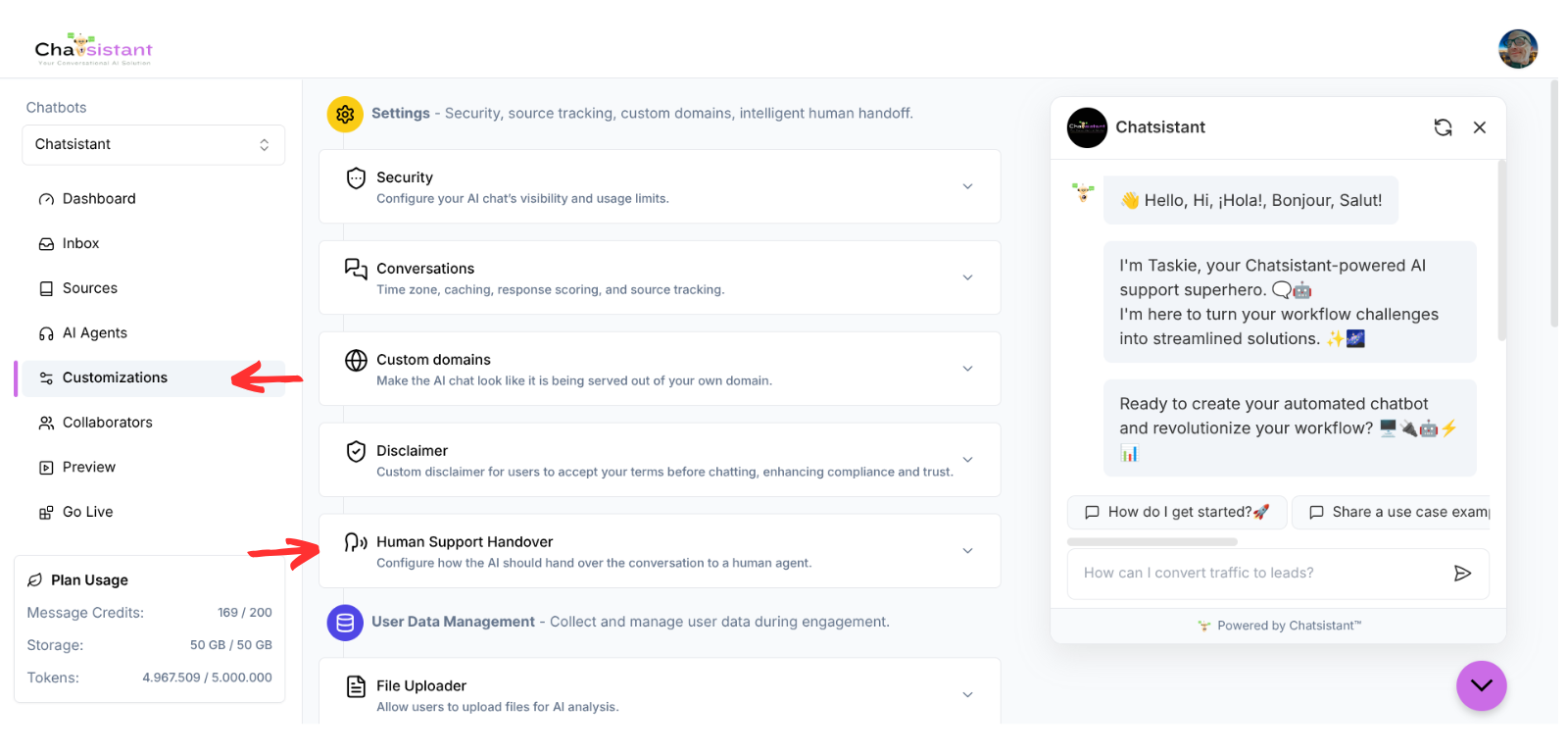
Go to **Customizations** tab. Under the "Settings" section, Click "Human Support Handover".
 Toggle on "Enable Human Escalation". Then a number of configuration options should appear.
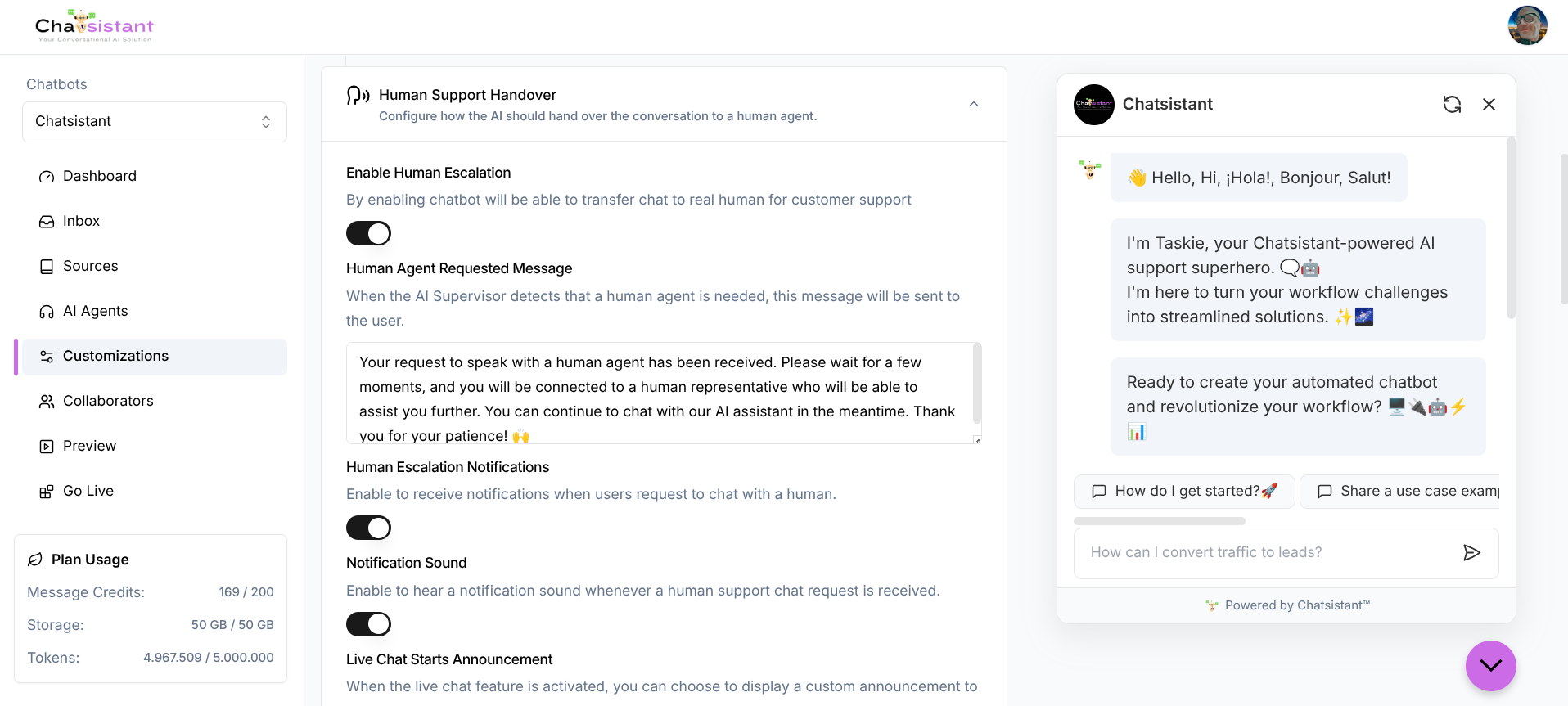 You can configure what the AI says when human escalation request is detected during the conversation, as well as
what shows up when a human agent takes over or leaves the chat. For more advanced use cases, you can even define
custom phrases or intents that the AI should be looking out for. If the AI responds with that phrase, your
human agents will receive a notification immediately.
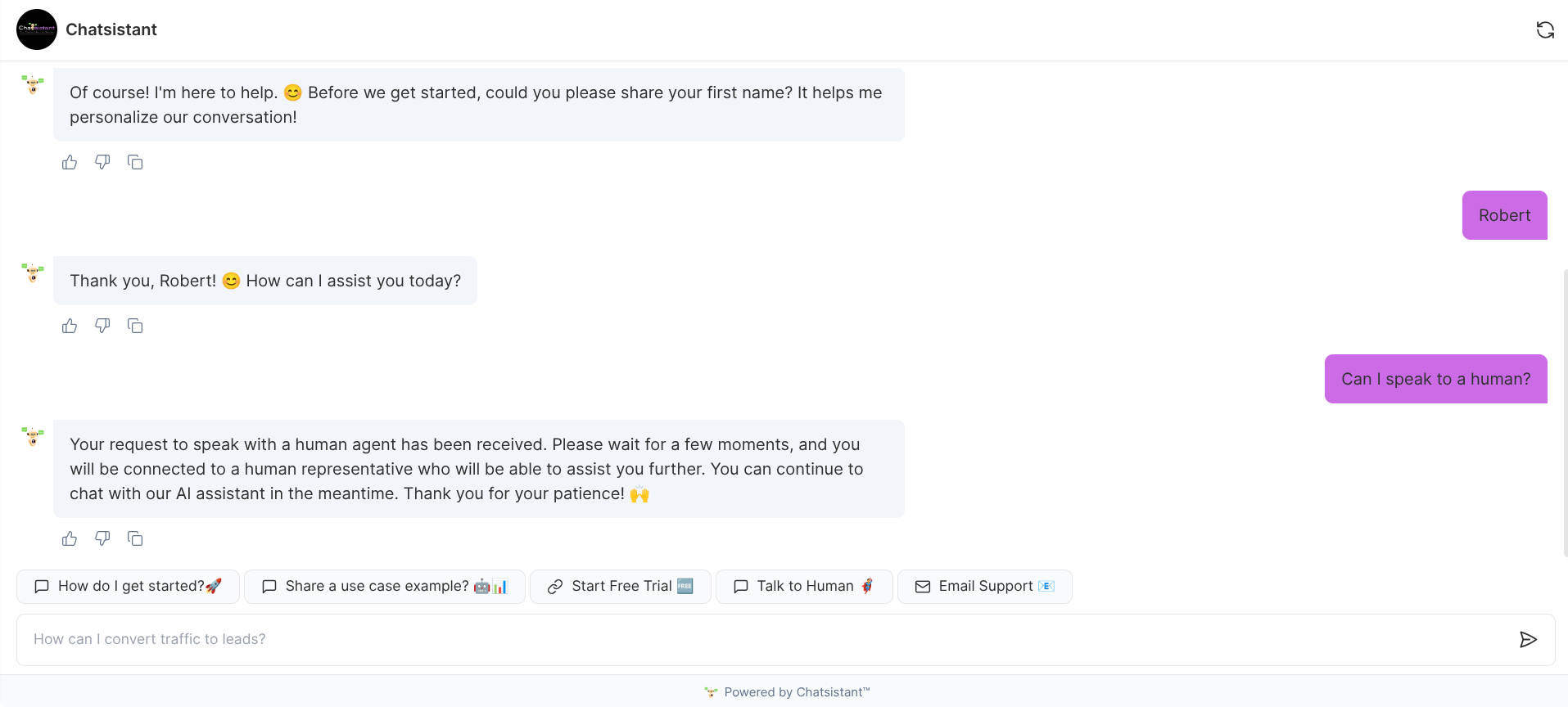
To test your human support escalation setup, you'll need to generate a public link to the chatbot and access it
using another browser tab. **The built-in "Preview" tab does NOT support human escalation testing.**
Go to "Go Live" tab, click "Share". You may need to change your chatbot visibility settings temporarily
in order to generate the link.
You can configure what the AI says when human escalation request is detected during the conversation, as well as
what shows up when a human agent takes over or leaves the chat. For more advanced use cases, you can even define
custom phrases or intents that the AI should be looking out for. If the AI responds with that phrase, your
human agents will receive a notification immediately.
To test your human support escalation setup, you'll need to generate a public link to the chatbot and access it
using another browser tab. **The built-in "Preview" tab does NOT support human escalation testing.**
Go to "Go Live" tab, click "Share". You may need to change your chatbot visibility settings temporarily
in order to generate the link.
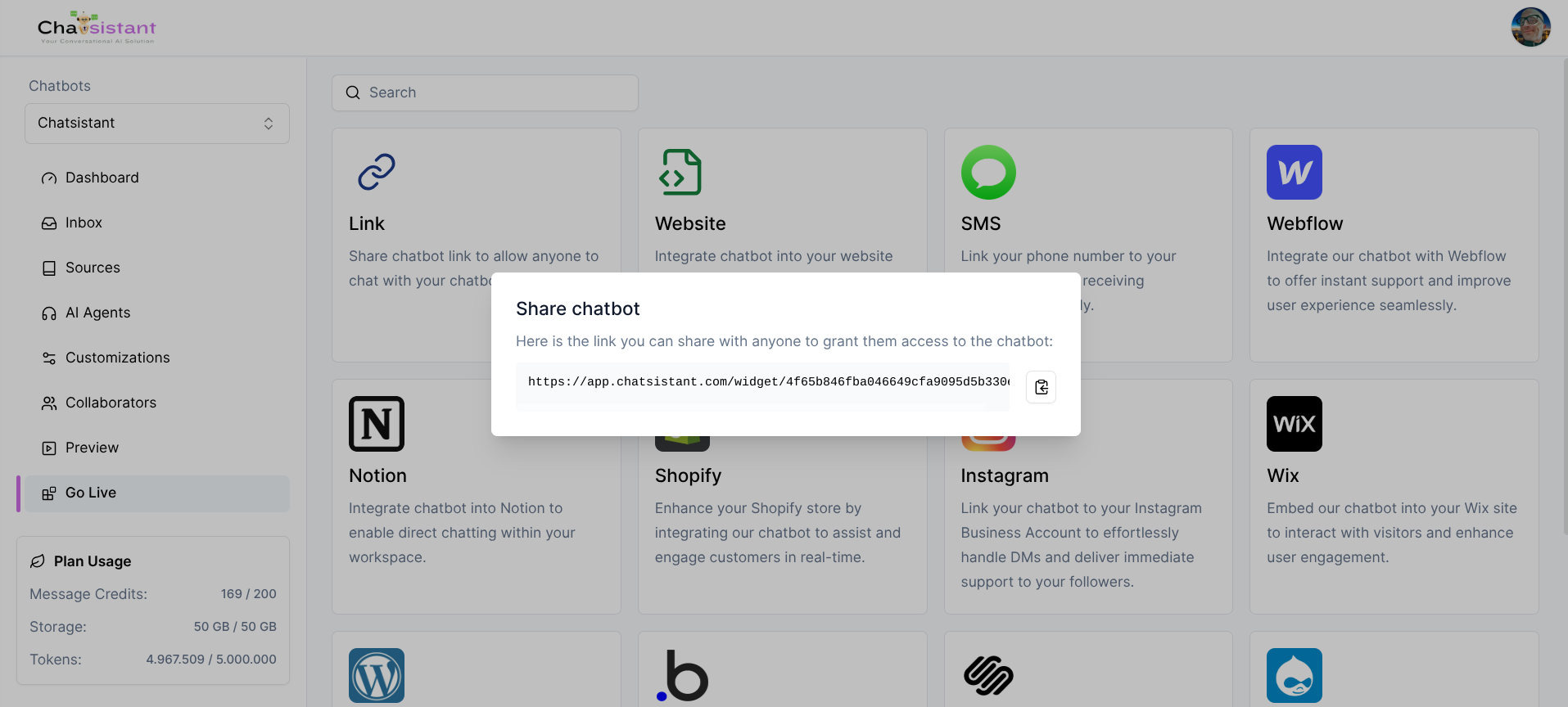 Once you have the link, open a new browser tab and navigate to it. Do not close the original chatsistant tab.
You should be taken to the chatbot as a typical user. You can then test it by submitting queries requesting human support.
Once you have the link, open a new browser tab and navigate to it. Do not close the original chatsistant tab.
You should be taken to the chatbot as a typical user. You can then test it by submitting queries requesting human support.
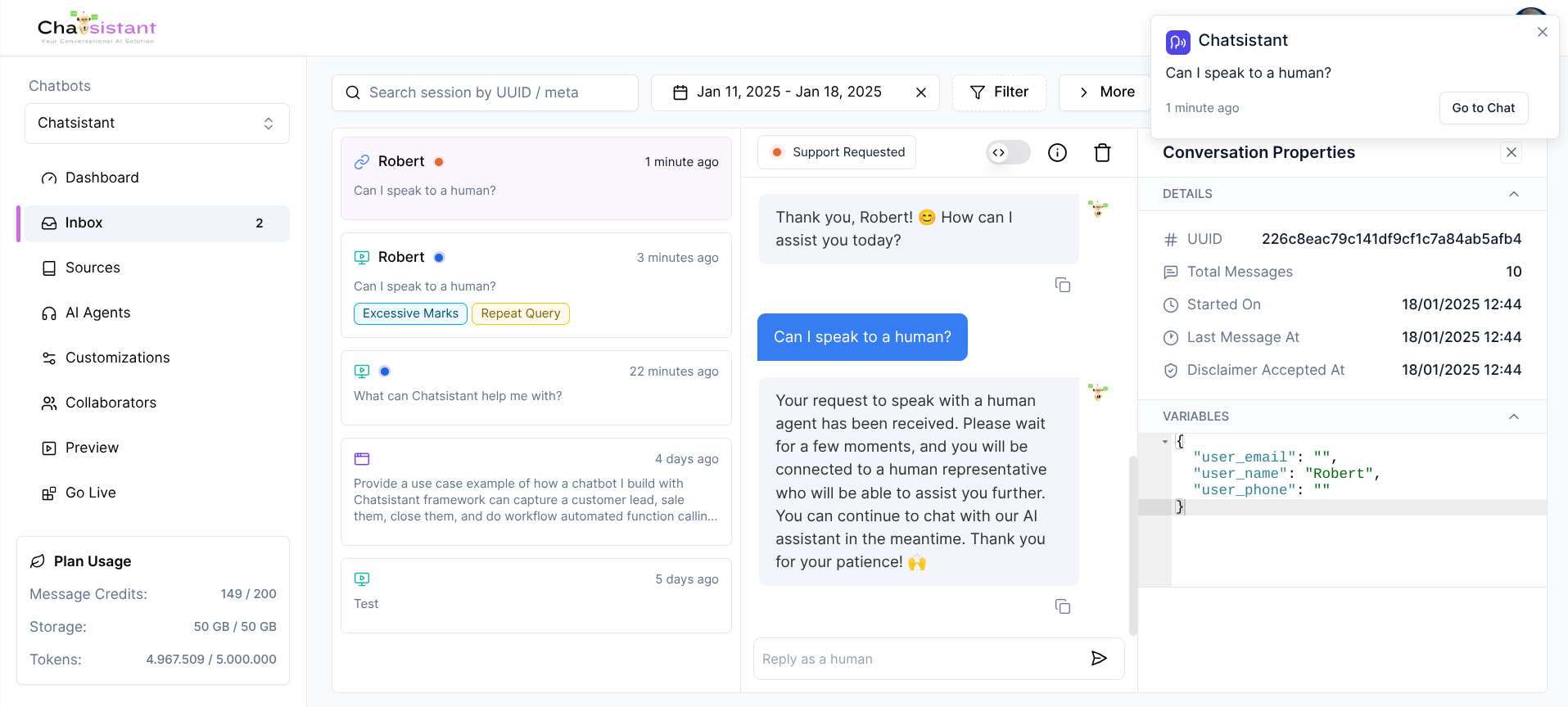
 To take over as a human agent, head over to **Inbox** on the left navigation bar from your chatsistant browser tab. You should see an orange dot
next to the session requesting human support. Click it and you will be able to engage directly with the user. Simply start
typing a response in the chat input text box at the bottom of the chat log.
To take over as a human agent, head over to **Inbox** on the left navigation bar from your chatsistant browser tab. You should see an orange dot
next to the session requesting human support. Click it and you will be able to engage directly with the user. Simply start
typing a response in the chat input text box at the bottom of the chat log.
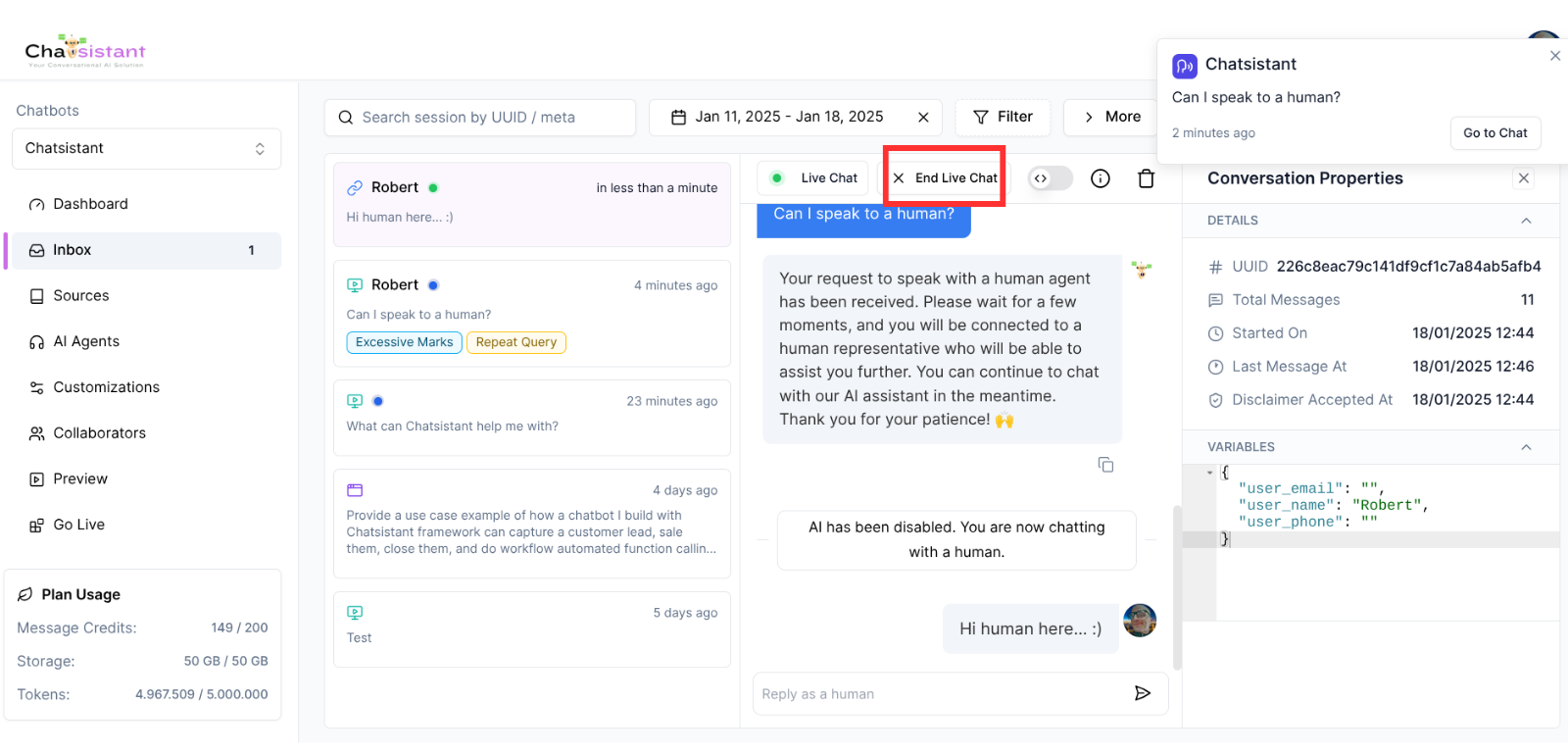
 As soon as you send the first message, AI Supervisor and all AI Agents will be disabled. You can have a direct conversation with your
user for as long as you'd like. Once you are done, you can end the live chat session and put your user back on to the AI chatbot by clicking
"End Live Chat".
As soon as you send the first message, AI Supervisor and all AI Agents will be disabled. You can have a direct conversation with your
user for as long as you'd like. Once you are done, you can end the live chat session and put your user back on to the AI chatbot by clicking
"End Live Chat".
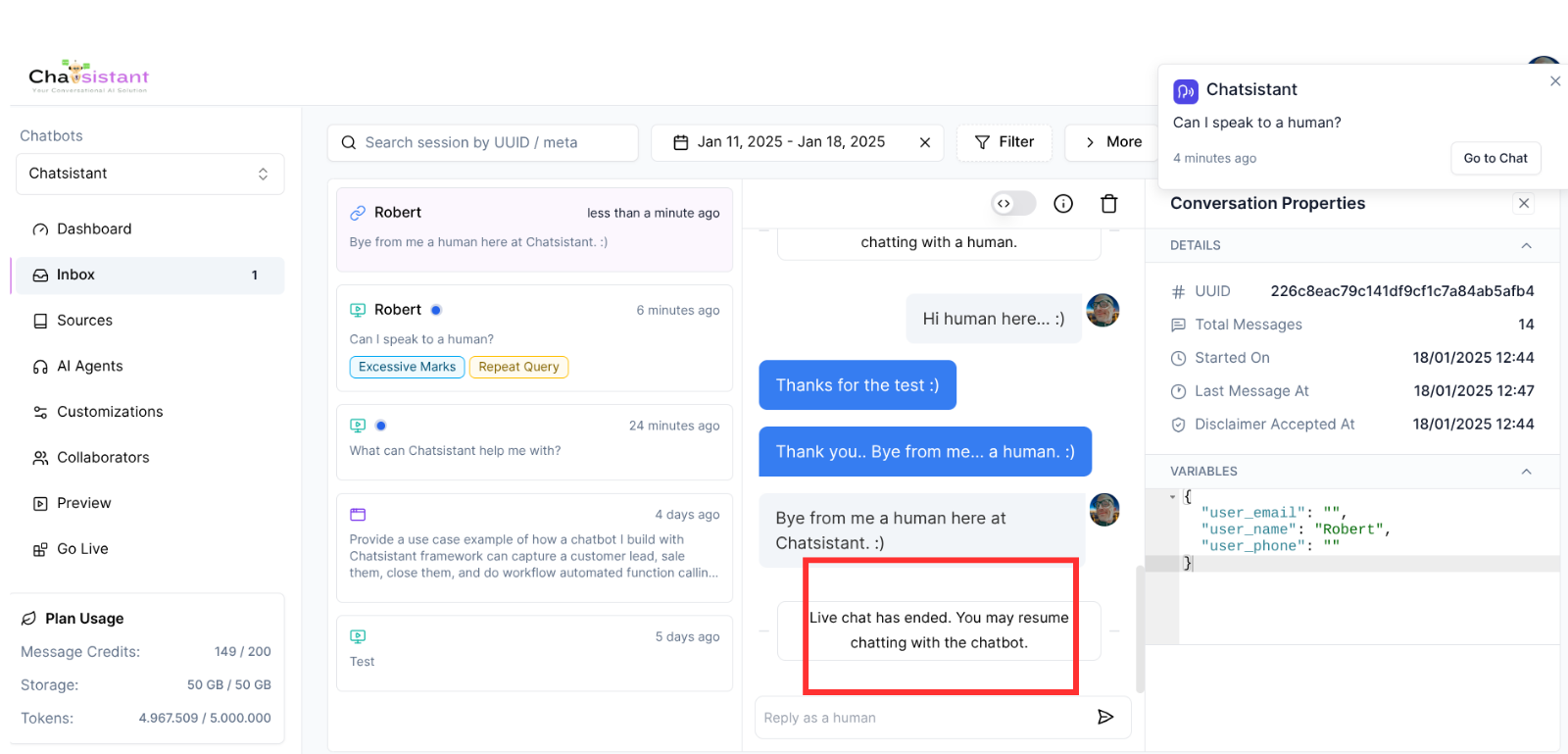 You may stay and continue to monitor the user's interaction with the chatbot as the AI regains control over response generation.
Depending on your use case, you may wish to fine tune the circumstances when the user should be redirected to a human agent. To do so, please
review our documentation on [Fine Tuning Agent Intents](fine-tuning-agent-intents).
## Updating Your Human Agent Avatar
Each user account can have a single human avatar. This avatar shows up when that human agent takes over the chat session. Since
Chatsistant supports multiple collaborators, many human agents can monitor the same chatbot and have their own avatars when responding
to a user.
To set up your own avatar, click the profile icon on the top right. You should see a dropdown menu:
You may stay and continue to monitor the user's interaction with the chatbot as the AI regains control over response generation.
Depending on your use case, you may wish to fine tune the circumstances when the user should be redirected to a human agent. To do so, please
review our documentation on [Fine Tuning Agent Intents](fine-tuning-agent-intents).
## Updating Your Human Agent Avatar
Each user account can have a single human avatar. This avatar shows up when that human agent takes over the chat session. Since
Chatsistant supports multiple collaborators, many human agents can monitor the same chatbot and have their own avatars when responding
to a user.
To set up your own avatar, click the profile icon on the top right. You should see a dropdown menu:
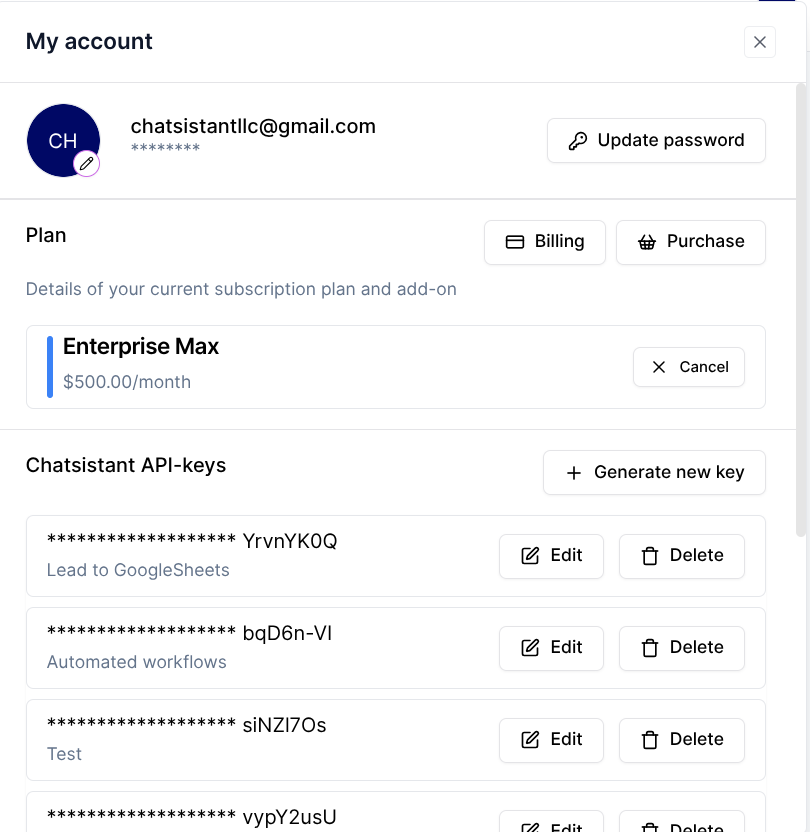
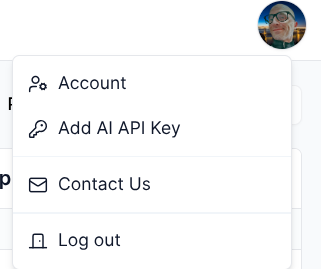 Next, click "Account", followed by the pencil icon next to the avatar picture. You will be asked to select a photo from your computer.
 ## Enable Human Support Notifications
To receive alerts on human support requests, follow the steps below.
### Turn on Alert Modes
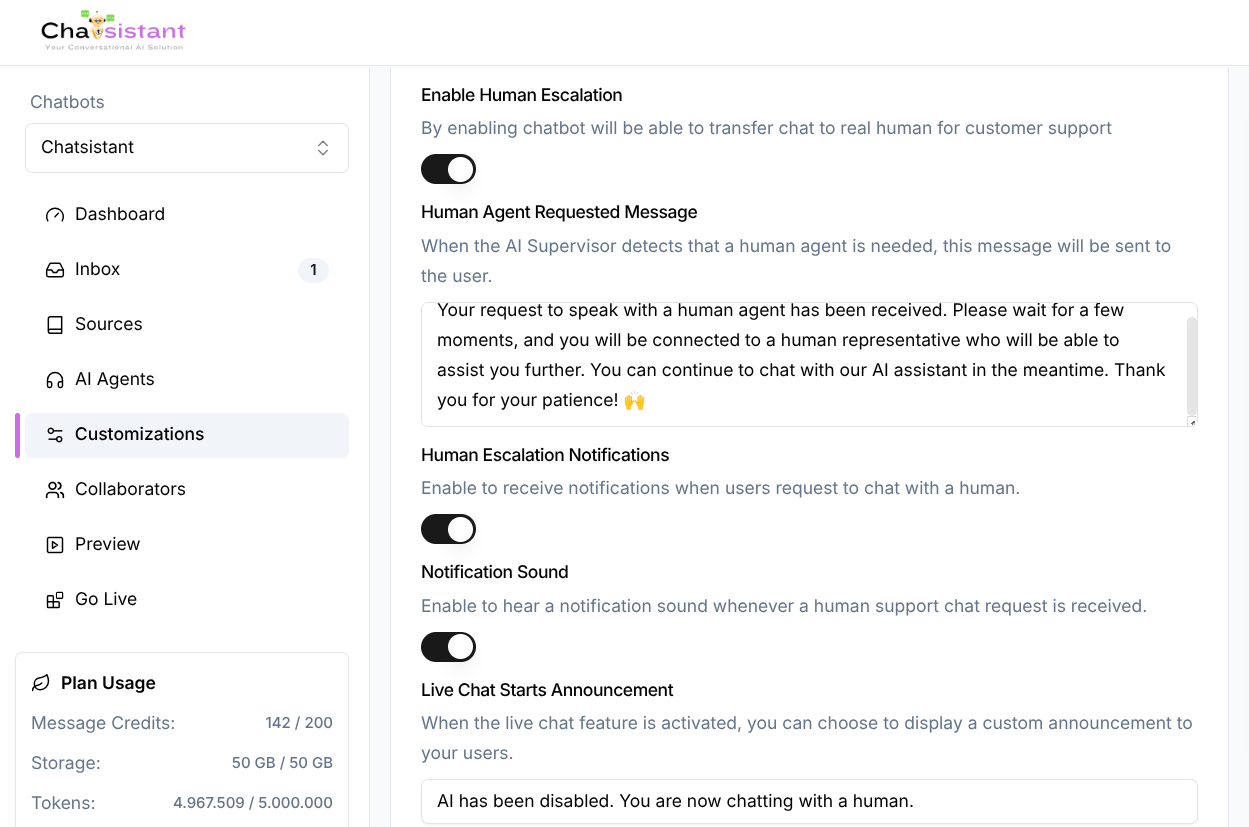
1. Go to **Customizations** tab on the left navigation bar.
2. Enable Human Escalation Notifications toggle - This ensures that notifications related to user support requests are activated.
3. Enable Notification Sound - Activate this option if you wish to receive an audible alert along with the notifications.
## Enable Human Support Notifications
To receive alerts on human support requests, follow the steps below.
### Turn on Alert Modes
1. Go to **Customizations** tab on the left navigation bar.
2. Enable Human Escalation Notifications toggle - This ensures that notifications related to user support requests are activated.
3. Enable Notification Sound - Activate this option if you wish to receive an audible alert along with the notifications.
 ### Browser Permissions
Each web browser manages permissions for notifications and sounds on a per-website basis. To ensure that you receive notifications
properly, you'll need to enable both permissions within your browser settings. To proceed forward:
1. Launch your browser where you will use [Chatsistant platform](https://app.chatsistant.com).
2. Enable your browser permissions by choosing option bellow:
Click on the button near url in the top-left corner, then select "Site
settings".
### Browser Permissions
Each web browser manages permissions for notifications and sounds on a per-website basis. To ensure that you receive notifications
properly, you'll need to enable both permissions within your browser settings. To proceed forward:
1. Launch your browser where you will use [Chatsistant platform](https://app.chatsistant.com).
2. Enable your browser permissions by choosing option bellow:
Click on the button near url in the top-left corner, then select "Site
settings".
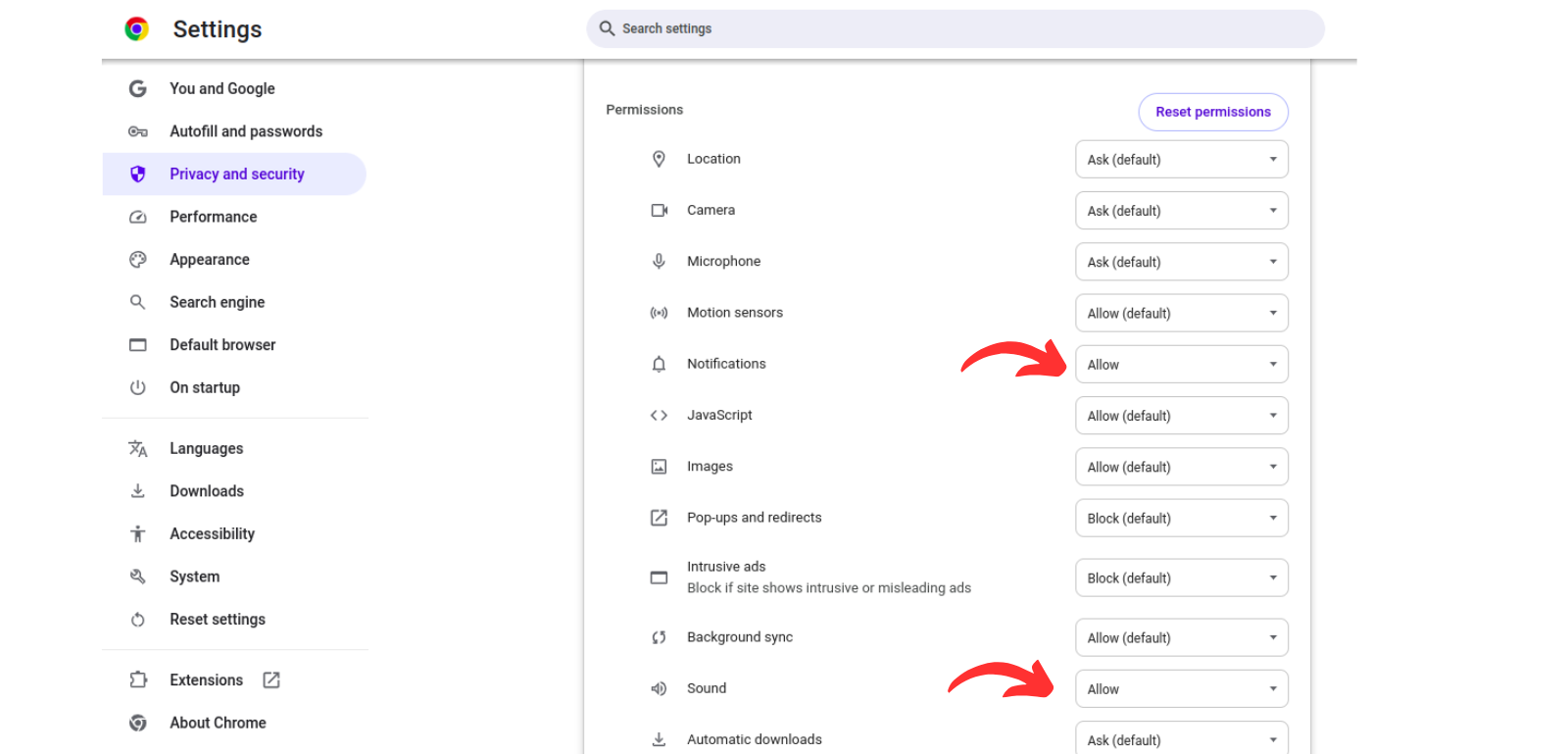
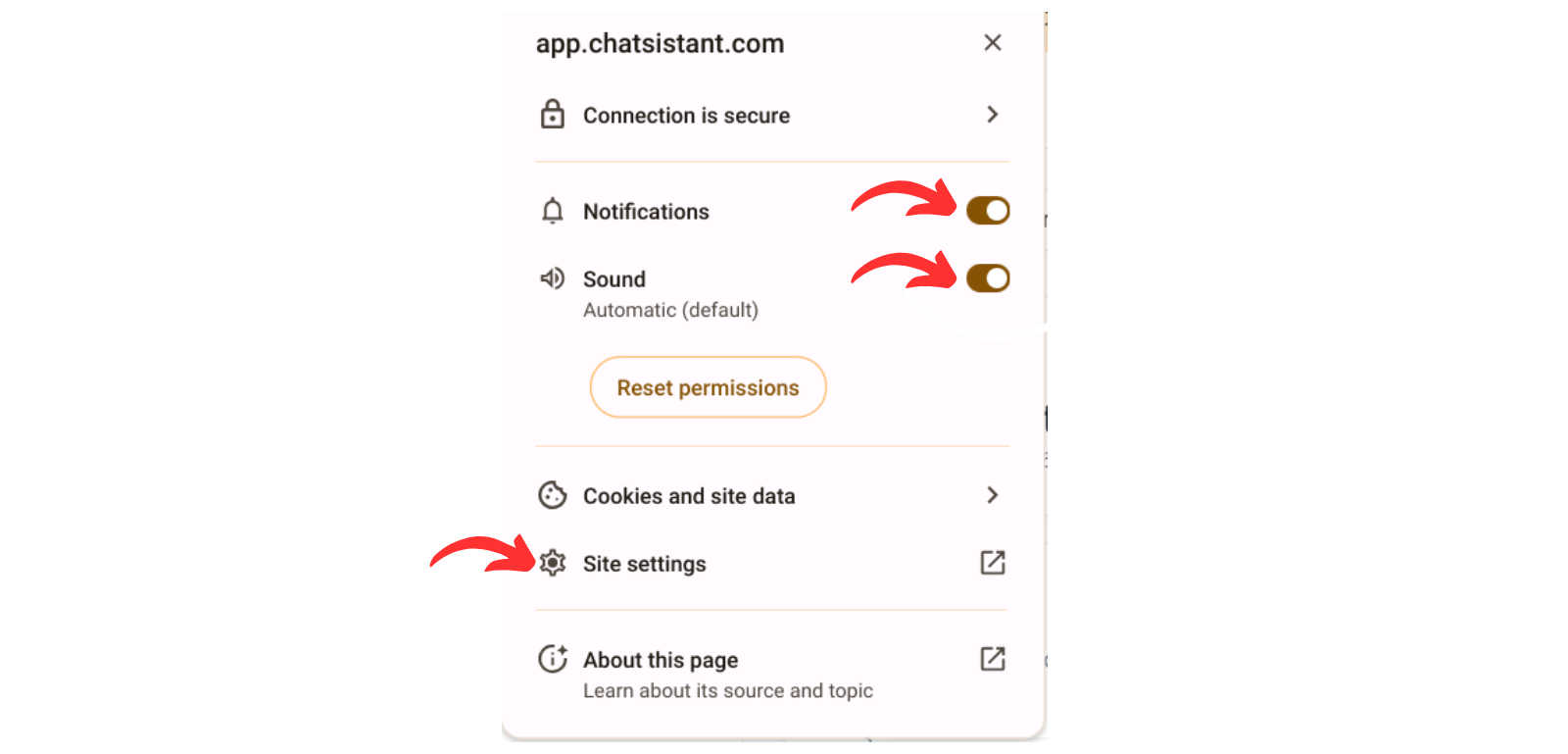 Make sure that "Notifications" and "Sound" are set to Allow in
"Permissions settings".
Make sure that "Notifications" and "Sound" are set to Allow in
"Permissions settings".